

Editor's Note: The following is a guest post from our friends at Electronic Team, Inc. They have a cloud storage manager called CloudMounter that makes it easy to access, browse, and organize files hosted on MacStadium hardware right from your macOS Finder.
Mac development teams often work across several cloud services, like AWS, and remote servers, like MacStadium. The problem is not access itself - it is the constant switching between apps, browser tabs, sync folders, and different ways of handling files. CloudMounter simplifies this workflow by making remote storage available through Finder, so developers can browse, open, copy, and save cloud files in a familiar desktop environment.
CloudMounter supports multiple cloud services and protocols, including Amazon S3, Google Drive, Dropbox, OneDrive, SFTP, FTP, WebDAV, and other storage platforms. It is available for both macOS and Windows.
Why File Access Gets Complicated for Mac Development Teams
Modern development teams rarely keep all their files in one place. Source code may be handled through Git, while documentation sits in Google Drive, design files are shared through Dropbox, client material is stored in OneDrive, and application assets or backups live in Amazon S3. A distributed team may also have internal SFTP servers, WebDAV storage, or separate accounts for individual clients and projects.
Each service can come with its own application, login, sync folder, or workflow. That creates several everyday problems:
- developers have to switch between different cloud applications;
- multiple accounts can require separate logins or configurations;
- remote files may require a browser or specialized application to access.
None of these problems is particularly difficult by itself. Together, however, they create unnecessary friction.
For a distributed development team, the goal is not necessarily to move all data onto every developer's Mac. It is to make the required remote storage available when and where it is needed.
Common Multi-Cloud Scenarios on a Mac
1. Working with several client accounts:
Developers and agencies often need access to multiple accounts belonging to different customers. Logging out of one account before accessing another is inconvenient and can lead to mistakes.
2. Opening remote files directly from desktop applications:
Suppose a developer needs to inspect a remote configuration file, log, or project asset. With a mounted cloud location, the file can be opened from Finder and, where supported by the application, opened directly in a desktop tool such as Visual Studio Code or Xcode.
3. Moving files between different cloud services:
Multi-cloud work often means moving information between services. For example, a team might receive an asset through Dropbox, keep working files in Google Drive, and store production data at MacStadium. A unified interface makes it easier to see these locations together and move files between them without maintaining a separate workflow for every service.
Why the Finder Integration Matters
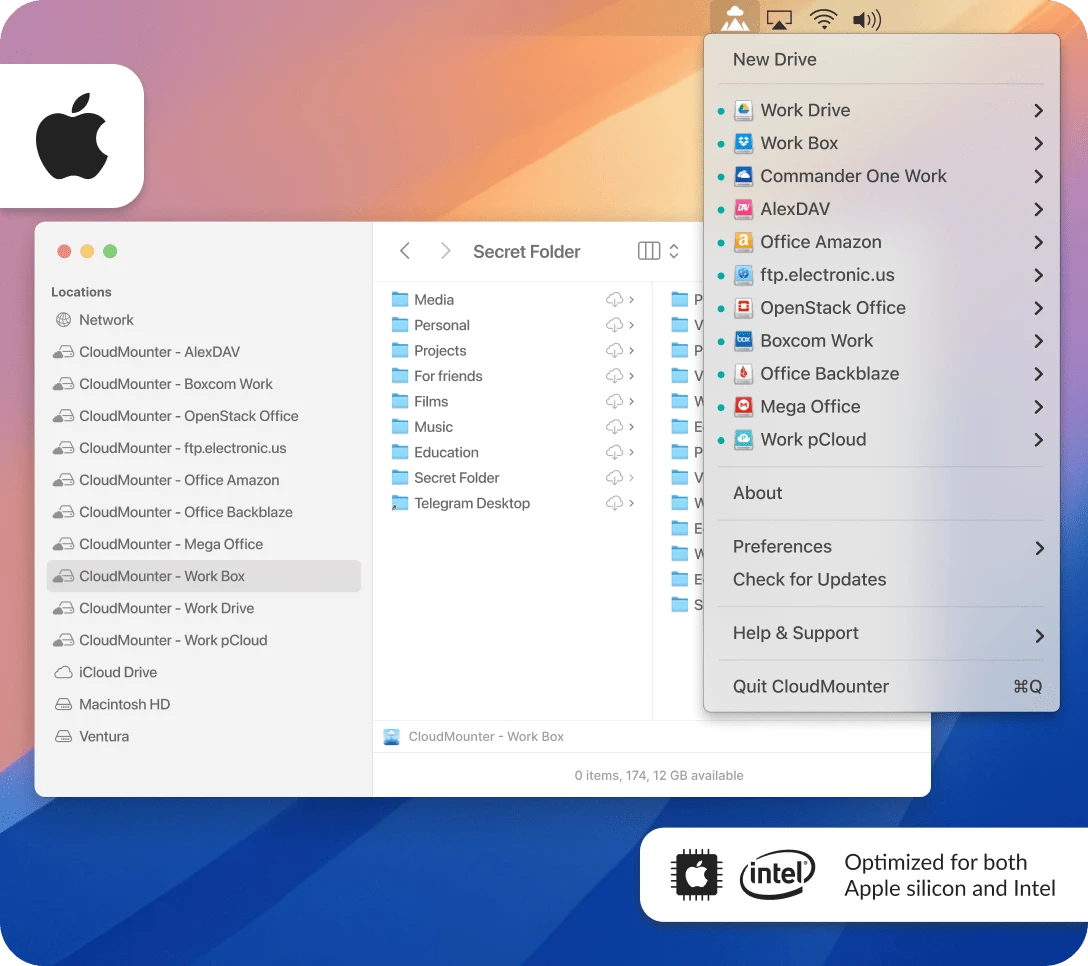
CloudMounter makes authorized remote storage easier to use from macOS. Teams working with hosted Macs, distributed Apple development environments, release assets, documentation, and remote project storage can use a common Finder-based approach to reach the files their workflows already depend on.
The benefit of CloudMounter is not simply that it connects to cloud storage; it is that remote storage becomes part of the familiar Mac file workflow.
Once mounted, a developer can use Finder to:
- browse remote folders;
- copy and move files;
- open and edit files;
- create folders;
- work with several remote locations at once.
That makes CloudMounter particularly suitable for users who want to start working with remote files without spending much time learning another complex application.
When CloudMounter Makes Development Work Easier
CloudMounter is most useful when the team needs regular access to relatively small amounts of remote data rather than moving entire datasets. For example:
- Checking application logs: A developer can open a remote log from Finder instead of downloading it through a browser.
- Editing project assets: A configuration file or other small asset can be opened from the mounted location and saved back to the remote storage.
- Comparing client environments: Several accounts can stay mounted, making it easier to compare files between projects.
- Handling assets: Images, documents, test data, or other project resources stored in S3 can be browsed without using the AWS console for every file operation.
- Sharing files between cloud services: Files can be moved between supported remote locations through a common desktop interface.
- Working across operating systems: Because CloudMounter has desktop versions for both macOS and Windows, teams with mixed Mac and Windows environments can use the same general approach to remote file access.
A Simple Approach to Multi-Cloud File Access
For a Mac-based development team, the value of CloudMounter is less about adding another powerful tool and more about removing unnecessary steps. Its value comes from deliberate simplicity: connect the storage, mount it, and work with files using the Mac interface the team already knows.
Instead of remembering which application belongs to which cloud service, developers can use Finder as the common starting point. Instead of downloading every remote file before opening it, they can access supported storage from the desktop. And instead of constantly switching between accounts, several connections can remain available at the same time.
To learn more about CloudMounter and how it can be used to easily manage your MacStadium-hosted Mac, visit https://cloudmounter.net.