

What’s new in Orka 3.4.0: Empowering IT Teams with Fine-Tuned Display Resolution Configuration
Orka 3.4.0 introduces several key resolution updates, including a new feature allowing users to set custom display settings using Orka. This includes both standard-resolution VMs and HiDPI configurations. Orka 3.4.0 helps further enable operational flexibility, an improved user experience, and increased support for accessibility and compliance across the enterprise.
From Compliance to Performance: The Role of Display Resolution in Enterprise VMs
VDI and BYOD Compatibility for the Enterprise
On Orka 3.4.0, users can have consistent remote access and support across all devices. If your organization is running VMs in a Citrix environment, adjusting your display resolution to fit your device ensures seamless remote access across laptops, tablets, or other devices. Additionally, enterprises supporting a Bring-Your-Own-Device policy in the workplace are now better able to account for a variety of screen sizes and resolutions.
UI Testing and Application Compatibility
Companies developing software at scale need to test their applications at various display sizes and screen resolutions to ensure they meet compatibility and accessibility requirements. Employees or end users may require the ability to set higher screen resolutions or display larger screen elements for readability. Additionally, your business may also need to comply with certain laws or regulations such as WCAG, or the European Accessibility Act (EAA).
Increased Efficiency and Support for IT Teams
IT teams often remote in to VMs to troubleshoot issues. Having the ability to match display resolutions gives them additional support to diagnose and resolve UI/display issues. For enterprises using golden images or templates, being able to set a VM’s display resolution programmatically helps ensure a consistent experience across devices for all users.
Additionally, businesses running their VMs in a resource-constrained environment can potentially reduce their CPU and GPU load or lower bandwidth in remote desktop sessions by adjusting their display resolution.
UI Tools and Testing in Virtual Machines
When performing UI testing in VMs, there are a variety of tools to consider for scalability, automation, and cross-platform compatibility. A few examples are:
- Selenium Grid - Allows for parallel execution of tests across multiple machines and browsers, making it ideal for distributing UI tests across VM instances.
- Sauce Labs - A cloud-based platform that also allows for UI test execution across a variety of OS and browser configurations, with in-depth debugging and reporting features available.
When it comes to automating the CI/CD process, there are a variety of options available, such as Jenkins, GitHub Actions, and GitLab CI. Developers working on an end-to-end software development cycle will often have their tests running in a CI/CD pipeline throughout the testing process. Most modern CI/CD platforms include automated triggering of tests, the ability to re-run flaky tests, deployment automation, and more. This allows developers to ensure continuous feedback and reduce manual overhead in their UI-testing workflow.
Adjusting Your Display Resolution in Orka 3.4.0
The orka3 vm deploy command has the following new options:
--display-width Adjust console display window width in pixels
--display-height Adjust console display window height in pixels
--display-dpi Adjust console display density in pixels
The following constraints apply to both deployed and configured VMs:
- Supports a minimum width of 320 px
- Supports a maximum width of 3840 px
- Supports a minimum height of 480 px
- Supports a maximum height of 2160 px
- Supports a minimum DPI of 60 px
- Supports a maximum DPI of 240 px
- Supports an optional maximum DPI of 320 px
Adjust display resolution using the Orka CLI
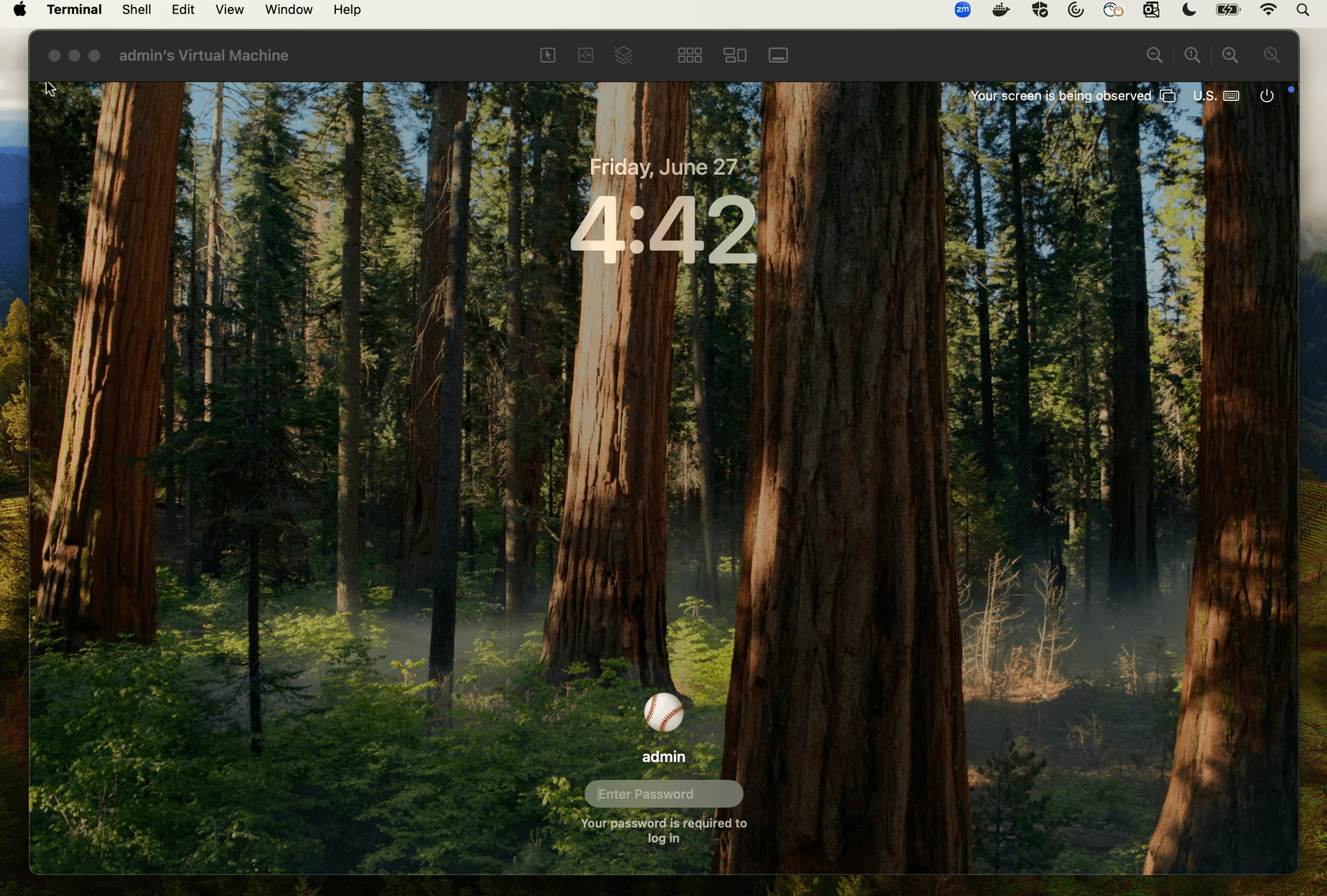
orka3 vm deploy --image ghcr.io/macstadium/orka-images/sequoia:15.4.1 --display-width 2560 --display-height 1600 --display-dpi 320 - Deploys a VM running MacOS Sequoia 15.4.1 with a display width of 2560x1600px and 320px display DPI (HiDPI)orka3 vm deploy --image ghcr.io/macstadium/orka-images/sequoia:latest-display-width 1920 --display-height 1080 --display-dpi 90 - Deploys a VM running the latest version of Mac OS Sequoia (15.5) with a display width of 1920x1080px and a display DPI of 90px.After the VM is successfully created, the display settings specified in the CLI will be reflected in the VM’s display as was specified by the user.
Set display settings via Orka API at VM deployment or configuration
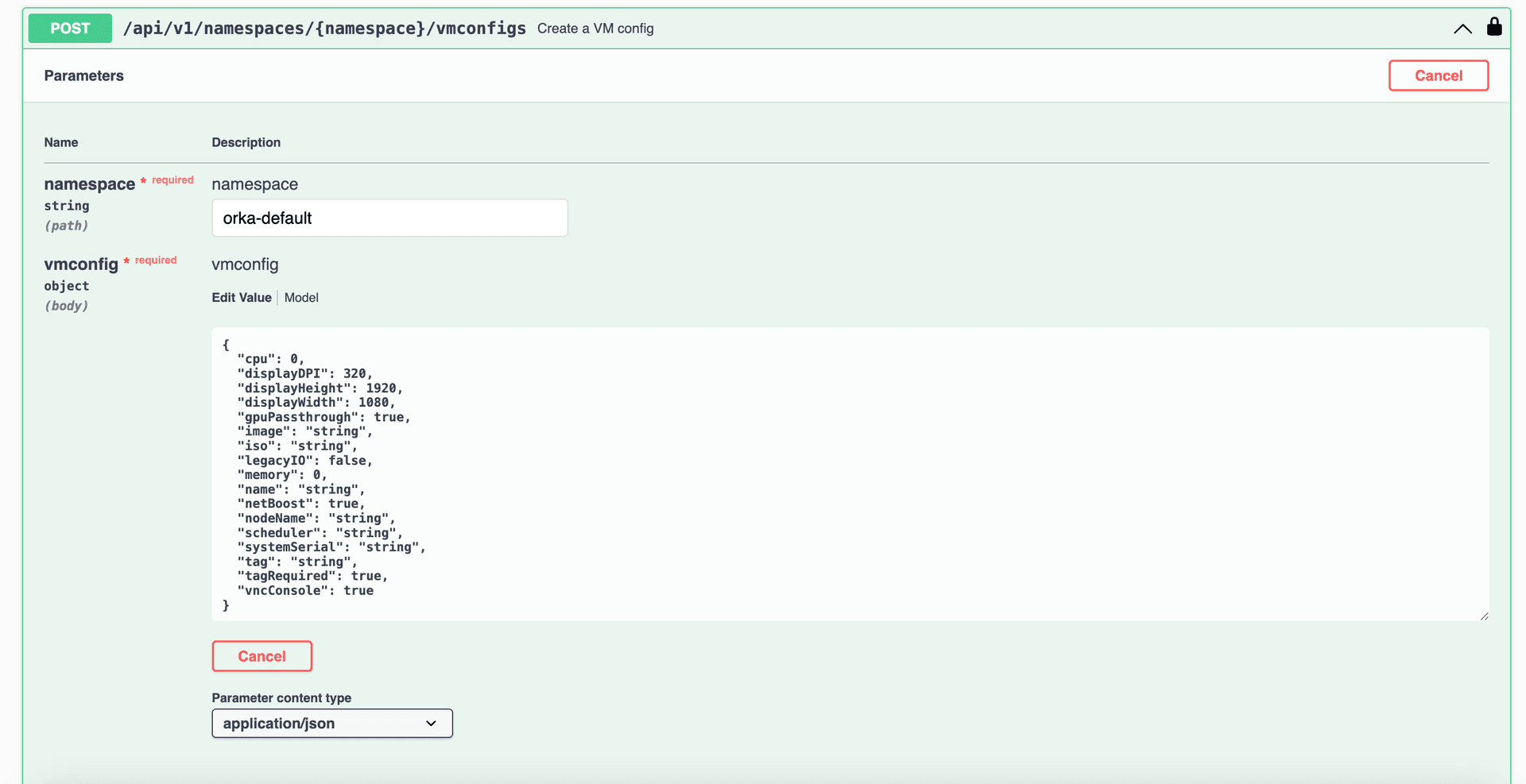
Users can now set custom display settings when configuring or deploying a VM via the Orka API.
The POST /api/v1/namespaces/{namespace}/vmconfigs and the POST /api/v1/namespaces/{namespace}/vms routes now accept the following fields:
displayWidth Adjust console display width in pixels
displayHeight Adjust console display height in pixels
displayDPI Adjust console display density in pixels
Feature and Performance Improvements
Orka 3.4.0 brings with it internal improvements resulting in faster deployment times overall. In addition to this, VMs created from an IPSW now have a default display resolution of 1920x1080 px with a DPI of 96px.
For additional details, please refer to the Orka 3.4.0 release notes.
Virtual Machines, Real Business Impact
In today’s enterprise, it’s important for organizations to prioritize performance and compliance. Orka 3.4.0 allows enterprise IT to easily streamline UI testing and display configuration on macOS. Ensuring users can adjust their VMs’ display resolution is a necessity for accessibility, performance, and performance management.
As more businesses continue to support an ever-increasing variety of devices, remote work, and high-resolution display configurations, having flexible display settings in VMs plays an important role in delivering a seamless user experience.
Get started with Orka 3.4.0 today
For current Orka users, talk to your MacStadium account team member to coordinate an update. New to Orka? Our team of Mac experts would love to help you get started.